


Description
Download FaviconizeTab – Reduce Tab Clutter, Save Screen Space
Overview
Browsing the modern web often means juggling dozens of tabs at once. Power users, researchers, and anyone who likes to keep multiple sources open can quickly run into the classic “tab overload” problem: the tab bar becomes a cramped ribbon of titles, many of which are truncated or hidden entirely. FaviconizeTab is a lightweight Firefox extension designed to tackle this issue head‑on. By converting any open tab into its tiny favicon— the 16×16 pixel icon most websites use for bookmarks— the extension frees up precious horizontal space without sacrificing the ability to switch between pages. The concept is simple yet powerful: right‑click a tab, select “Faviconize,” and watch the tab shrink to the size of a single icon. This minimal visual cue still lets you identify the site at a glance, and you can restore the full tab title whenever you need more context. FaviconizeTab is especially useful for users who run research sessions, comparative shopping trips, or any workflow that requires keeping many pages alive simultaneously. Although the extension does not persist faviconized states after a browser restart, its on‑the‑fly approach means you stay in control of which tabs stay compact and which retain their full titles. The tool works with Firefox 102 and newer, and it addresses a long‑standing need for a more efficient tab‑management strategy without resorting to third‑party tab‑grouping extensions that often add extra UI clutter. In short, FaviconizeTab offers a free, secure, and instantly recognizable way to declutter your Firefox tab bar, letting you focus on content rather than fighting for screen real estate.
Key Features
- One‑click favicon conversion: Transform any tab into its website’s favicon with a single context‑menu command.
- Dynamic toggle: Re‑expand a faviconized tab back to its original title instantly, keeping workflow fluid.
- Minimal UI footprint: The 16×16 icon occupies virtually no space, allowing you to keep dozens of tabs visible at once.
- Compatibility with modern Firefox: Fully supported on Firefox 102+, including ESR releases.
- Lightweight and fast: The extension adds less than 50 KB of code, ensuring no noticeable performance impact.
- Secure installation: Distributed via Mozilla’s official Add‑ons site, guaranteeing that the code is reviewed and signed.
- Open‑source transparency: Source code is publicly available on GitHub, letting developers audit or contribute improvements.
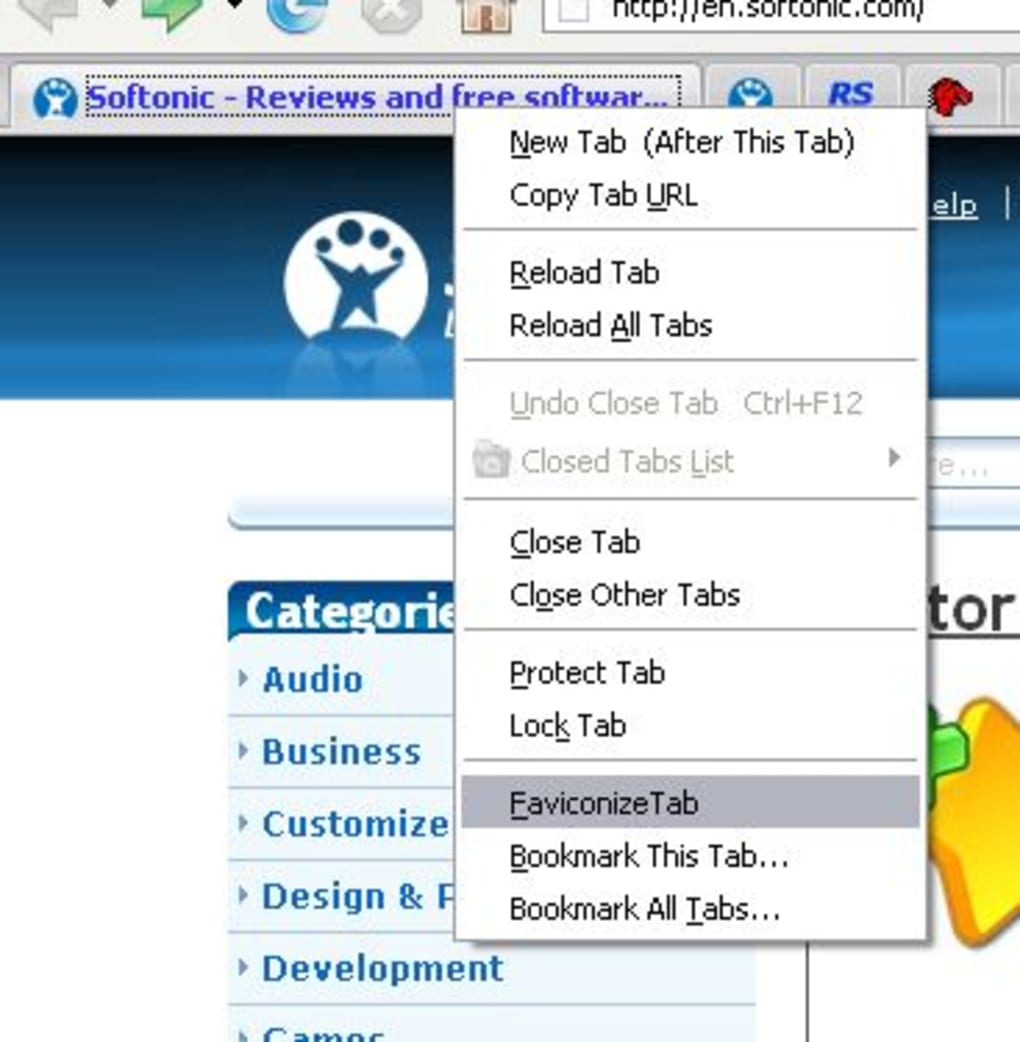
- Context‑menu integration: The “Faviconize Tab” command appears directly where you expect it— in the right‑click menu of any tab.
- Automatic icon fetching: The extension pulls the site’s favicon from the standard
link[rel="icon"]tag or fallback to/favicon.ico.
While FaviconizeTab excels at visual compression, it also respects user preferences. The extension does not interfere with tab ordering, pinned tabs, or Firefox’s built‑in tab‑suspend features. Because the favicon is a native part of the page’s metadata, the extension never stores additional data on your machine, preserving privacy. Users who need a persistent state across sessions can combine FaviconizeTab with session‑manager add‑ons, but the core tool remains focused on on‑the‑fly tab minimisation. Overall, the feature set provides a balanced mix of simplicity and utility, making it a valuable addition to any power user’s toolbox.
Installation & Compatibility
Installing FaviconizeTab is straightforward and requires only a few clicks. Follow these steps to get the extension up and running:
- Open Firefox and navigate to the official Mozilla Add‑ons page for FaviconizeTab.
- Click the Add to Firefox button. Firefox will prompt you to confirm the installation.
- Read the permissions dialog (the extension only needs permission to read tab URLs and modify the tab label) and click Add.
- After installation, a small icon appears in the toolbar indicating the extension is active. No additional configuration is required.
Once installed, you can start using the tool immediately. Right‑click any open tab, choose “Faviconize Tab” from the context menu, and watch the tab shrink to its favicon. To revert, right‑click the same tab and select “Restore Tab Title.” Because the extension does not persist state after a browser restart, you’ll need to re‑apply faviconisation if you want the same layout in a new session.
Compatibility: FaviconizeTab is built specifically for the desktop version of Firefox on Windows, macOS, and Linux. It leverages the WebExtensions API, which means the same extension package works across all three operating systems without modification. Mobile Firefox (Android and iOS) does not support this extension, as the mobile browser does not expose a tab‑context menu for third‑party add‑ons. For users on older Firefox versions (pre‑102), the extension may not load due to API changes introduced in Firefox Quantum. Always keep your browser up to date to enjoy the latest security patches and extension compatibility.
The extension is free to download and use. Updates are delivered automatically through the Mozilla Add‑ons ecosystem, ensuring you always have the latest bug fixes and minor feature enhancements. If you encounter any issues— such as favicons not displaying correctly on a particular site— you can report them directly on the GitHub issue tracker linked from the add‑on page. The developer community is active and typically responds within a few days.
Pros, Cons, FAQ & Conclusion
Pros
- Significant reduction of tab bar clutter without losing site identity.
- Instant toggle between favicon and full title.
- Zero impact on browser performance.
- Free, open‑source, and securely distributed through Mozilla.
- Works on all major desktop operating systems.
Cons
- Favicon state is not saved after restarting Firefox.
- Requires manual activation per tab; no bulk‑apply option.
- Not available for Firefox mobile versions.
- Some websites use custom favicons that may not be instantly recognizable.
Frequently Asked Questions
Can I faviconize all tabs at once?
Currently, FaviconizeTab only offers a per‑tab command. The developer has discussed a bulk‑apply feature for future releases, but it is not part of the current version.
Will the extension affect my browsing speed?
No. The extension is lightweight (under 50 KB) and only modifies the tab label, which has a negligible impact on performance.
Is my data safe when using FaviconizeTab?
Yes. The add‑on only reads the URL of the active tab to fetch its favicon. It does not store any personal data or send information to external servers.
Can I use this extension on Firefox ESR?
FaviconizeTab works on Firefox ESR versions that are based on Firefox 102 or later. Check the add‑on page for the exact ESR build compatibility.
How do I report a bug or request a new feature?
Visit the GitHub repository linked from the Mozilla Add‑ons page, open an issue, and provide details about your environment and the problem you encountered.
Conclusion & Call to Action
For anyone who finds themselves drowning in a sea of open tabs, FaviconizeTab offers a pragmatic and free solution to reclaim valuable screen space. While it lacks a bulk‑apply feature and does not persist across restarts, its simplicity, speed, and cross‑platform support make it a worthwhile addition to any Firefox power user’s setup. By turning each tab into a recognizable icon, you can keep twenty, thirty, or even fifty sites open without the visual chaos that usually accompanies such numbers. If you’re ready to streamline your browsing workflow, download FaviconizeTab now and start turning tab overload into tab order.
Guides & Tutorials for FaviconizeTab
How to install FaviconizeTab
- Click the Preview / Download button above.
- Once redirected, accept the terms and click Install.
- Wait for the FaviconizeTab download to finish on your device.
How to use FaviconizeTab
This software is primarily used for its core features described above. Open the app after installation to explore its capabilities.
User Reviews for FaviconizeTab 0
No reviews found





